
Teams, Session Sharing, Audit Logs, and Automatic Sandbox Sizing
#Organize your workspace into teams
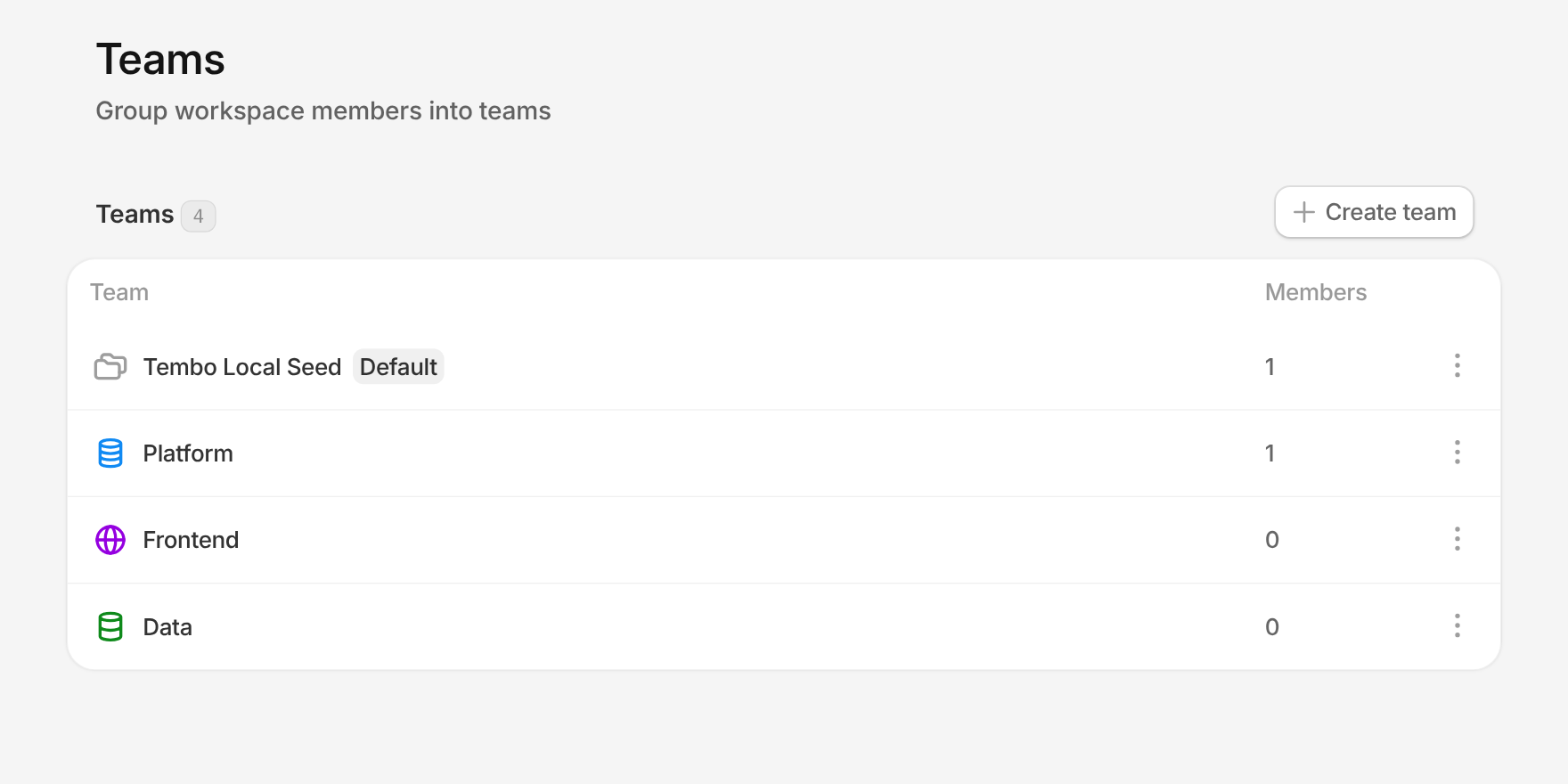
Group members into teams from Settings > Teams. Give each team a name, icon, and color, add people to it, and mark one team as the default. Teams you belong to appear under Your teams in the settings sidebar, and each team has its own page for its members and the sessions shared with it.
#Share sessions with people, teams, or the whole workspace
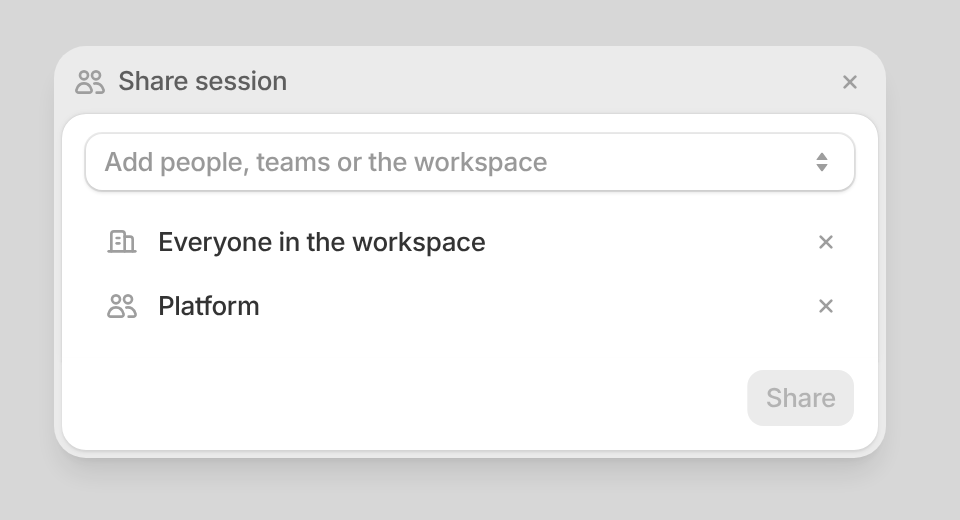
Choose Share from a session's menu to decide exactly who can see it. Add individual teammates, one or more teams, or everyone in the workspace, and remove anyone with one click. Sessions shared with a team show up on that team's page, so the right people can find the work without digging through everyone's sidebar.
#Audit logs for your workspace
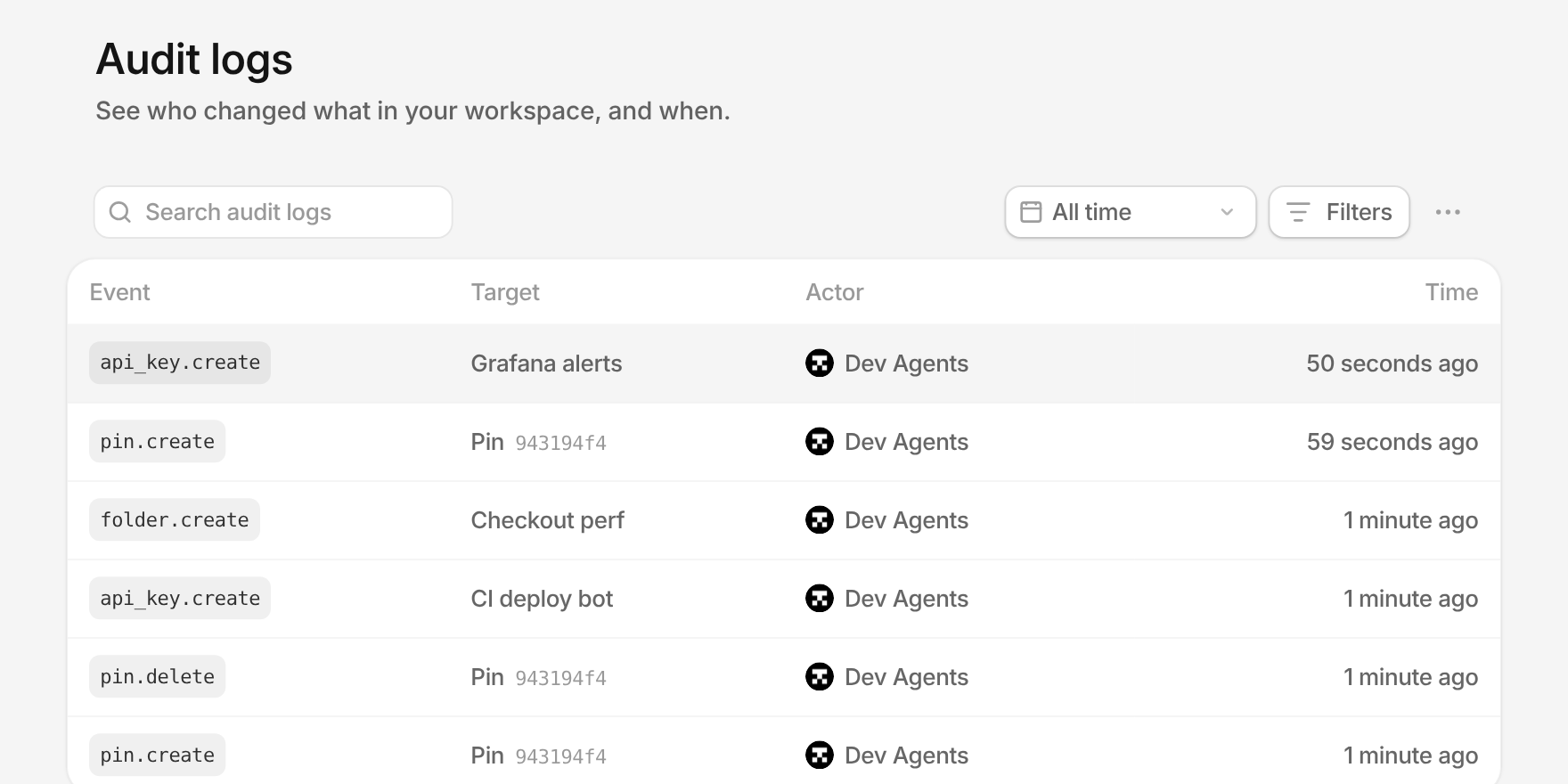
Settings > Audit logs shows who changed what in your workspace, and when. Changes to API keys, projects, repositories, integrations, agents, roles, billing, sessions, and more are recorded with the person who made them. Search the log, narrow it by date range or filters, open any event for its full details, and export the results to CSV. Older events load automatically as you scroll.
#Sandboxes that size themselves
You no longer pick a sandbox size. Every sandbox starts at your project's minimum (2 vCPU and 4 GiB by default), scales up while your agent works when it needs more, and scales back down once the heavy work is done, while your agent keeps working. Nothing restarts. Set a project's minimum, maximum, and disk size from its project settings. Read more in Sandboxes Just Got 55% Cheaper.
#Compute priced by what's allocated
Compute is billed per second for the vCPU, memory, and disk allocated while a sandbox runs: $0.0378 per vCPU-hour, $0.0130 per GiB-hour, and $0.0001 per GB of disk per hour. Disk defaults to 50 GB and can be set from 50 to 200 GB. No configuration costs more than it did before, and larger ones cost about 2% less. See the full breakdown on the pricing page.
#Connect more than one Claude, ChatGPT, or SuperGrok account
You can now connect several accounts for each LLM subscription from Settings > Connected accounts. Each account is listed with its linked email and its own usage bars. Tembo spreads sessions across your accounts, keeps each session on one account, and falls back to another connected account when one can't be used, so a single rate limit no longer stops your work.
#See what Claude is thinking
Claude sessions now stream Claude's thinking summaries into the session as it works, so you can follow its reasoning live instead of waiting for the next tool call or reply.
#More improvements
- GPT-6.2 Astra and Sol are now available in the OpenCode, Pi, and fx runtimes, and Ultrafast mode is available in Codex for GPT-6.2 Astra, GPT-6.2 Sol, and GPT-6.1 Sol.
- Linear Issue Created triggers can now be filtered by project, so an agent only starts on the issues it should handle.
- Artifact previews in a session now open in the full image lightbox for a closer look.
- Requesting a reviewer automatically is now off by default. Turn it on from Settings > Review to have Tembo request a review from the teammate who knows the changed files best.
- Screen sharing from your own devices now works on Linux machines running an X11 session.
- Loops, Sazabi, and Paper are now suggested MCP servers in Settings > Integrations.
- Remove a session from a folder in one click, and folders now remember whether they're expanded between visits.
- Self-hosted Tembo now shows sessions, VMs, and utilization for each agent host, can be set to serve HTTPS only, and can add custom headers to LLM provider requests.
Also various bug fixes and improvements as always :)